
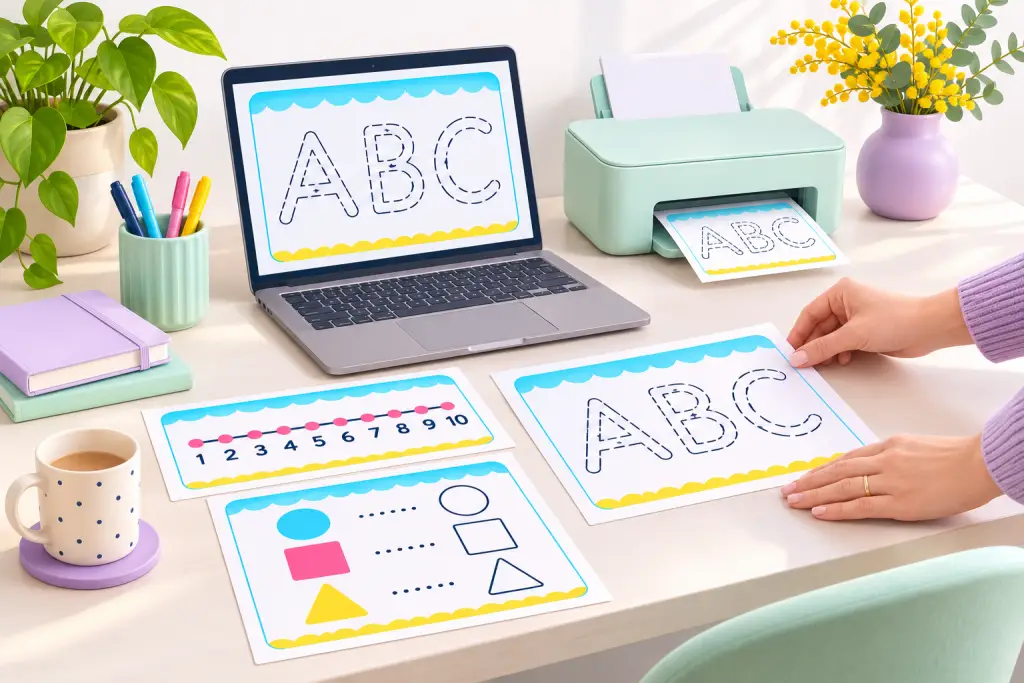
A small print test and a clear activity goal can save paper, preparation time and frustration. Use this adult-facing guide to choose a suitable worksheet, check the file and prepare one useful activity.
Start With the Activity, Not the Printer
A useful printable begins with a small decision: what would you like to do with it? 'Practise a few number shapes' gives you a clearer starting point than 'finish this workbook'. The same worksheet can be an introduction, a short practice task or a chance to revisit something familiar. Decide which of those jobs you need before choosing a resource.
This guide is for the adult preparing the activity. It combines a buying checklist, a simple print test and an example of how to turn one page into a manageable session. You do not need a shelf of supplies or a completed workbook to make the preparation worthwhile.
1. Read the Preview Against One Clear Goal
Look at an actual preview, not only the cover. Notice how much is on the page, the size of the writing space and whether the instructions require reading help. A sheet with tiny answer boxes may be awkward for a learner who is still getting comfortable holding a pencil, even when the topic is familiar.
For number work, separate the possible goals. Recognising a numeral, counting a set of objects and forming the written number are different activities. If the goal is to practise writing 3, choose a page with enough space for that movement rather than an unrelated page containing many sums. For letter work, check whether the resource uses uppercase, lowercase or both.
Grade labels can help you browse, but the preview tells you what the learner will actually be asked to do. Choose a short task that fits the learner in front of you, and keep an easier alternative available.
2. Check the File Before You Purchase
Read the listing for file format, page count, paper size and what is included. Check whether you receive a printable PDF, an editable template link or both. A picture of a laptop on a promotional image does not, by itself, mean that every element of the resource can be edited.
Also check the usage licence. A resource licensed for one household or classroom can be prepared for that setting; it is not permission to forward the original download to several classrooms or a parent group. If you are buying for more than one setting, ask about the appropriate licences before printing.
After downloading, keep a clearly named original file and work from a copy if you make changes. For example, a folder called 'Maths - number formation' is easier to find again than several files called 'download'. Avoid placing a child's full name in filenames that will be shared.
3. Run a One-Page Print Test
Open the file in a PDF reader and choose one representative page. Check the paper size in the file and in the print dialogue; use A4 only where the resource is designed for A4. If you see a choice between 'actual size' and 'fit', look at the preview and the file instructions rather than automatically choosing one for every document.
Use actual size when keeping the original dimensions matters and the preview shows the content within the printable area. If edges would be cut off, try fit-to-page or the recommended setting and inspect the result. Avoid borderless printing unless the file and printer support it. Borders close to the paper edge are a common reason to test first.
For a black-and-white worksheet, check that dotted lines and light illustrations remain visible in your chosen print mode. For a colour-coded reference chart, a greyscale copy may lose an important distinction. Print one page, look at it in ordinary light and only then commit to the rest of the file.
4. Prepare Only What the Session Needs
Set out the selected page, a suitable writing tool and a clear place to work. If you need to trim or laminate a resource, the adult should complete that preparation using appropriate equipment. Laminating every worksheet is not necessary; decide whether reuse is useful for the particular activity.
For a simple tracing session, extra decorations and a large pile of pages can distract from the task. Keep the rest of the pack nearby but out of the immediate work area. When using reusable sleeves, choose tools suitable for that surface and check that they clean off before writing across the whole page.
5. Try This Short Number-Practice Session
Choose one number from a number-tracing resource. First, point to it and say its name together. Next, invite the learner to find the same number elsewhere on the sheet. Then model one tracing attempt and offer a small amount of independent practice. There is no need to fill every line in one sitting.
If you are working with 3, you might count three large picture items on the sheet before writing. If counting and writing together make the task too busy, do just one of them. If the page feels easy, ask the learner to find the number in a book or calendar instead of adding more of the same worksheet.
Notice the support needed: could the learner start after a model, did the instructions need repeating, or was the writing space uncomfortable? Those observations help you choose the next activity. One worksheet is not a test of a child's overall ability and does not provide a diagnosis.
6. Fix Common Problems Before Reprinting
If a page prints blank or strangely, first confirm that the downloaded file opens correctly on screen. Try saving it locally and opening it in an up-to-date PDF reader rather than printing directly from an email preview. Check the printer connection, selected page range and ink or toner levels.
If the text is very small, check scaling before enlarging the whole file. If colours look different from the screen, compare the colour mode and print quality settings. If the file itself appears damaged, stop making repeated print attempts and contact the seller with the file name, order reference and a description of the error.
A Practical Before-You-Print Checklist
Choose one goal. Read the product details and licence. Open the complete file. Check paper size, page range and scaling. Print one test page. Prepare only the materials needed. Keep the original download organised for your licensed use.
You can explore our printable worksheets and activities when you need a starting point, or read How It Works for download and editable-template guidance. The best next page is the one that suits your next small activity, not necessarily the one that comes next in a pack.